Nova Autocare Free Docs
The documentation for your fantastic theme and template
Introducing
- Theme Name : Nova Autocare
- Author : novathemes
- Support Forum : https://wordpress.org/support/theme/nova-autocare/
- License : Version 3 or later of the GNU General Public License
- Discription :Nova Autocare Theme is designed for automotive-related websites with a layout focused on service listings, business information, and vehicle-related content. The theme includes responsive page structures that adjust across desktop, tablet, and mobile devices. It supports customizable homepage sections for displaying services, testimonials, contact details, pricing information, and featured content. Built-in typography and color settings allow visual adjustments without modifying code. The theme provides compatibility with common plugins for forms, galleries, sliders, and search engine optimization. It also includes multiple widget-ready areas, navigation menu support, and blog layouts for publishing updates or informational articles. Header and footer sections can be configured to display contact details, social media links, and branding elements. The clean code structure helps maintain consistent page loading and usability across browsers. Nova Autocare Theme includes customization controls through the admin panel, enabling adjustments to layouts, images, backgrounds, and content sections while maintaining a structured design suitable for automotive-focused websites.
Your method of the Theme Is Established
Modify the Theme
Installing a template is a pretty easy process..
Additionally, you can use WP Admin to install your theme.
Logging into the administration area of your WordPress site is the first step. Proceed to select
1.Please proceed to the dashboard interface. Jump to Appearance >> afterwards Themes
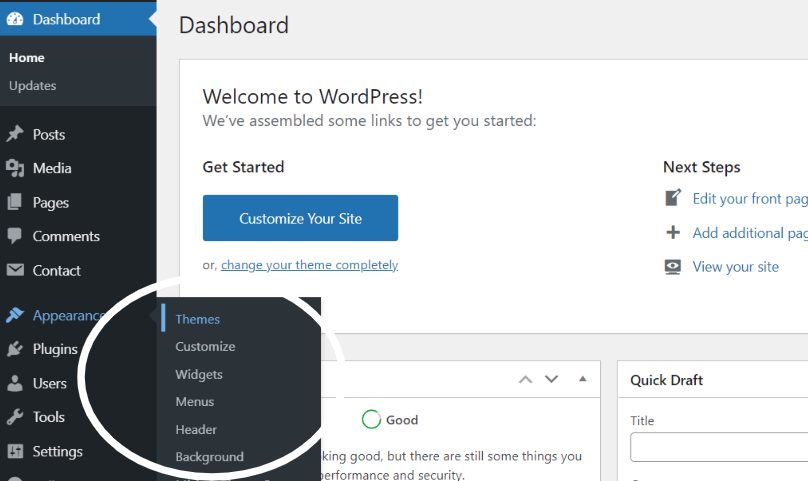
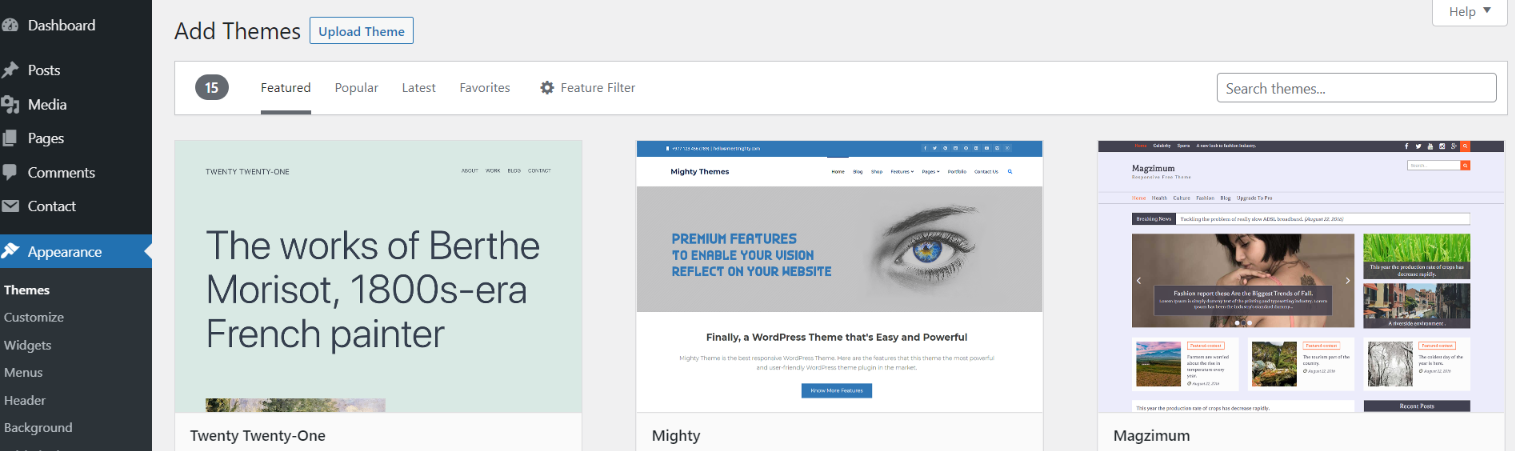
2. After the page loads, click the Add New icon at the very top of a themes page.
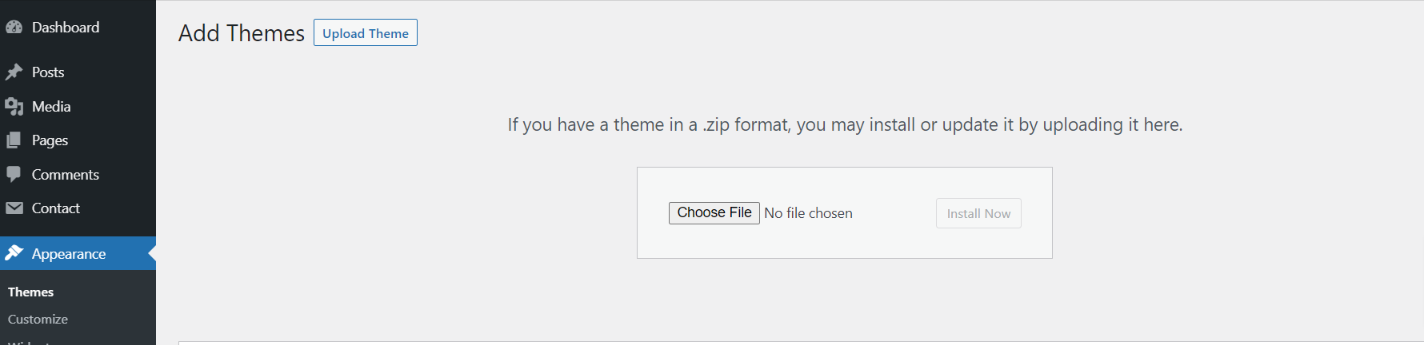
3. The 'Upload Theme' tab should be clicked..
4. After choosing your nova-autocare.zip theme by clicking the Browse button, click the Install Now button..
5. Now that your theme has been installed, WordPress will provide you a success message and a link to activate or view the live preview. Congratulations on finishing your theme installation..
Edit the Menu
Configure Menu
Follow the instructions to create a menu item with Editor.
Make a menu.
Open the dashboard and tap Appearance >> Jump to Editor while press on "Plux" icon.
You have three options: search, enter a URL, or pick a site from the list.
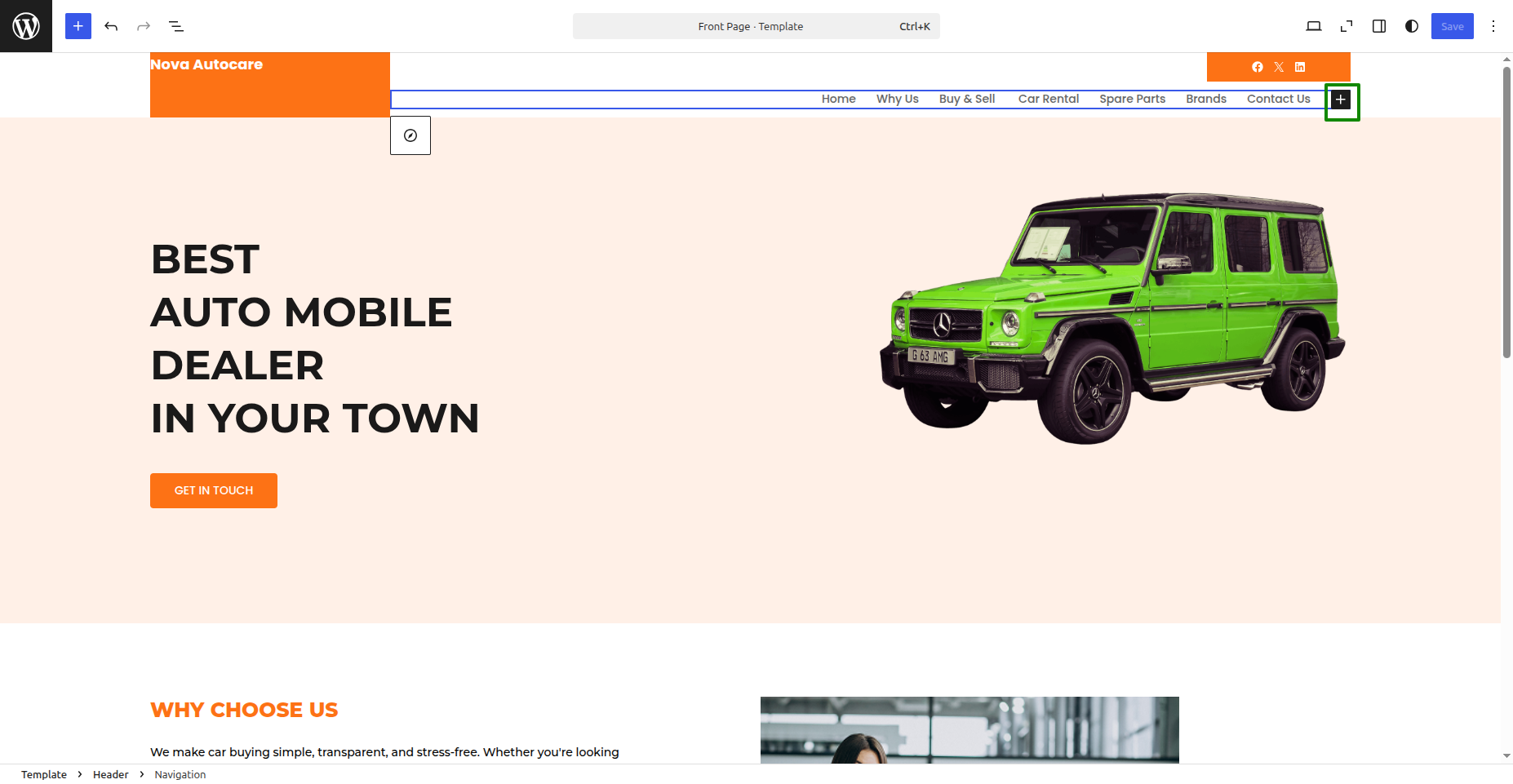
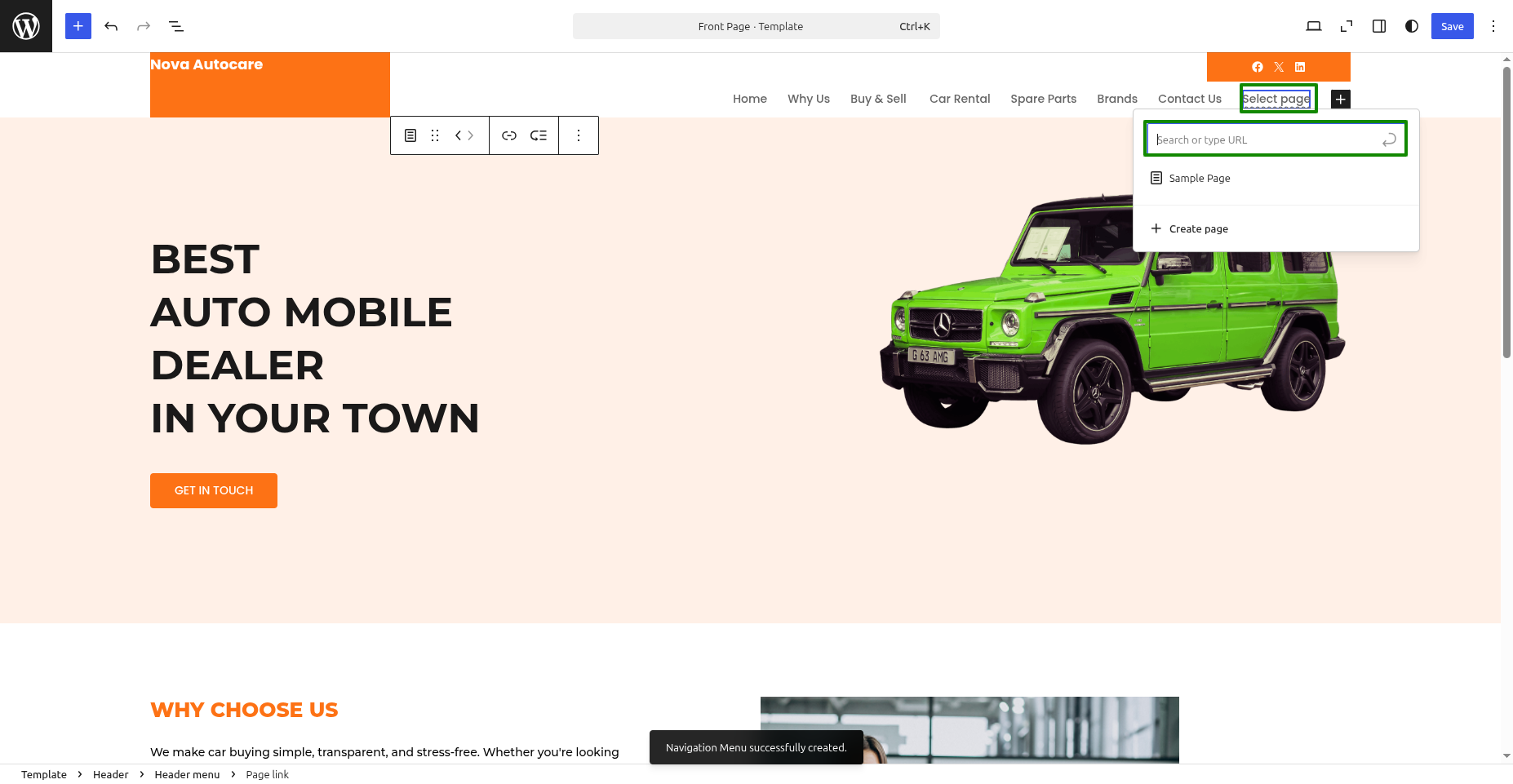
From a user interface perspective, it will appear as follows.

Nova Autocare Free Theme Config
Create a Header Part
To proceed with the Header, please follow the steps outlined below.
Open the dashboard and tap Appearance >> Jump to Editor
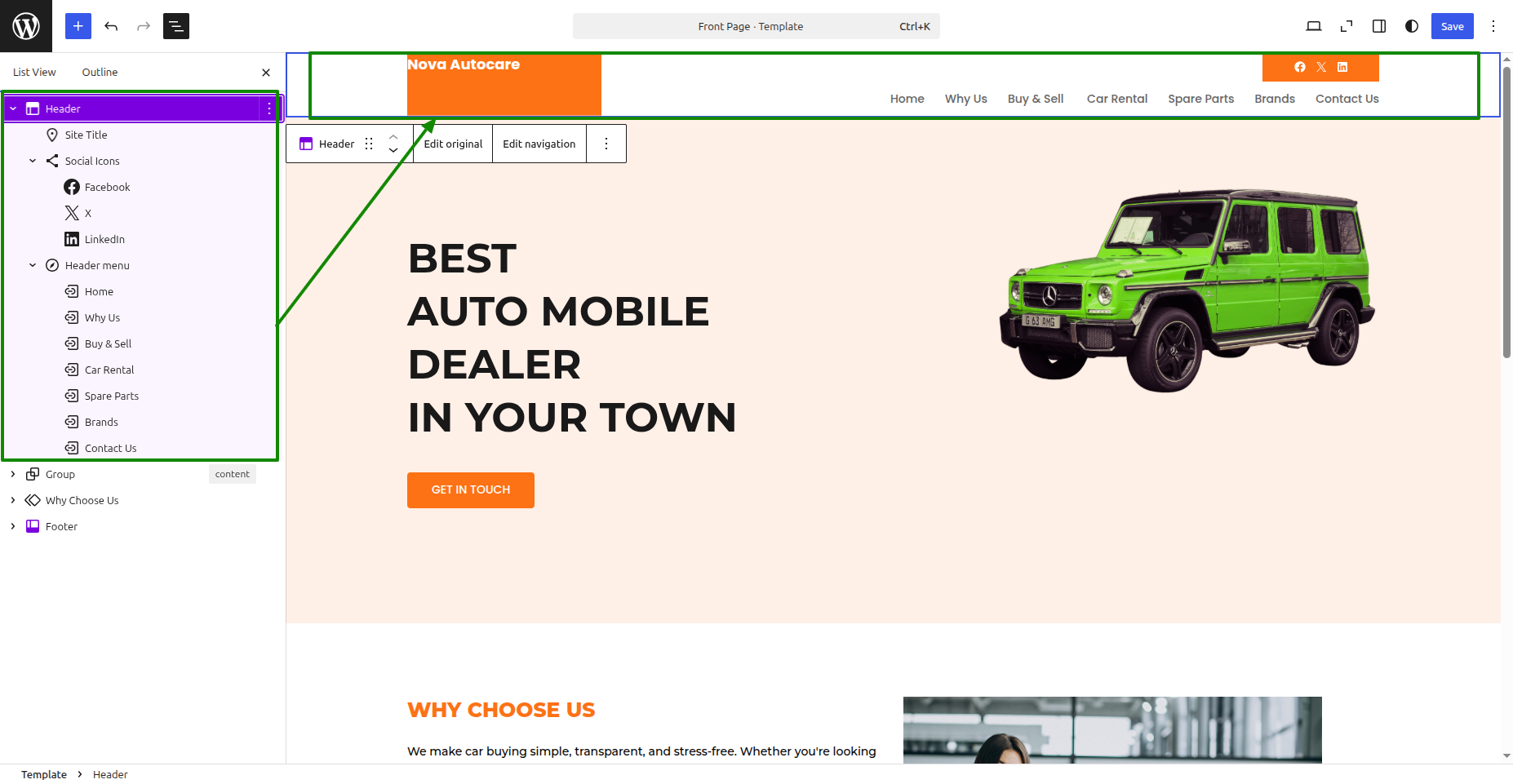
From a user interface perspective, it will appear as follows.

Create a Logo Setup Part
To proceed with the Logo, please follow the steps outlined below.
Open the dashboard and tap Appearance >> Jump to Editor
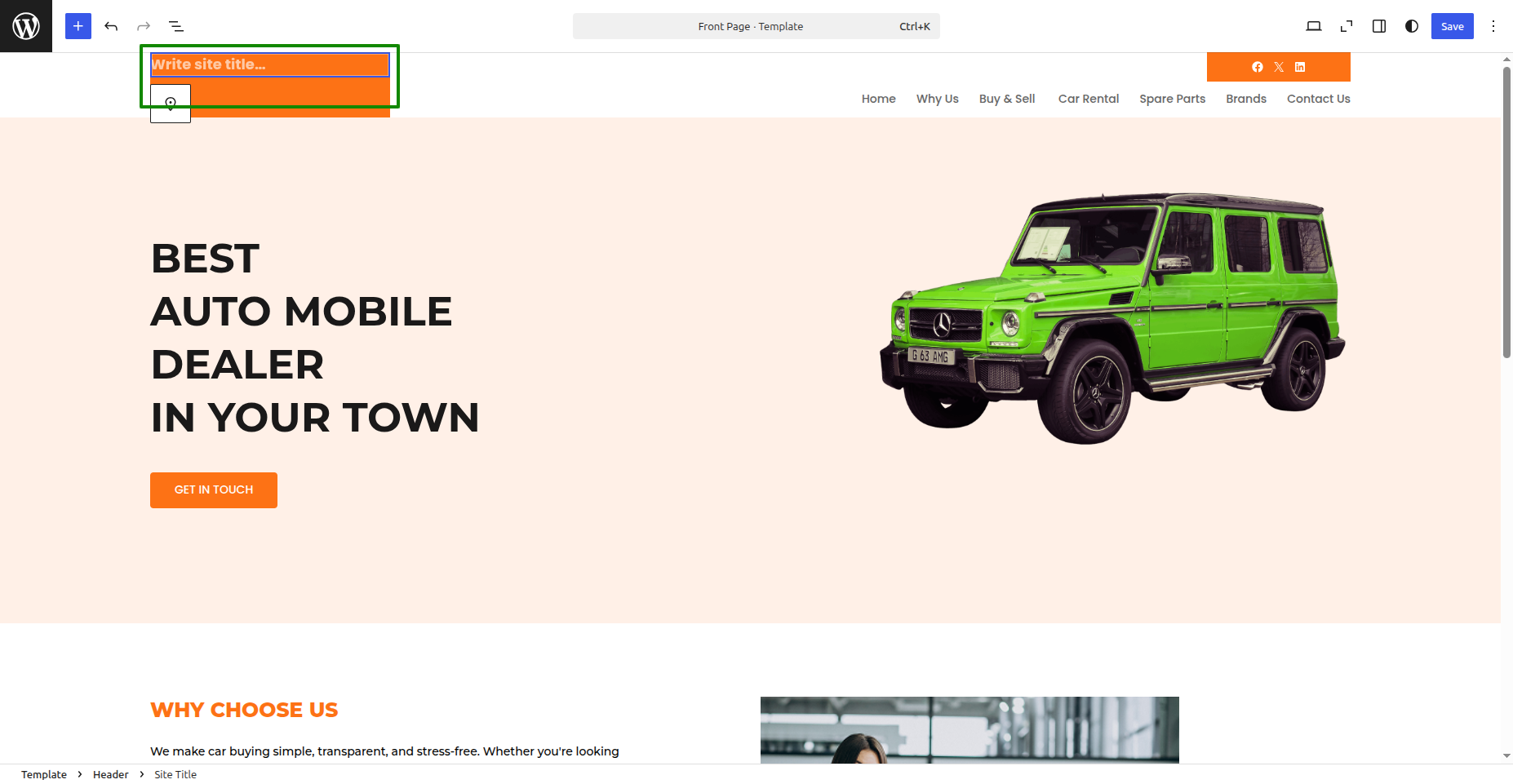
From a user interface perspective, it will appear as follows.
Create a Banner Part
To proceed with the Banner, please follow the steps outlined below.
Open the dashboard and tap Appearance >> Jump to Editor
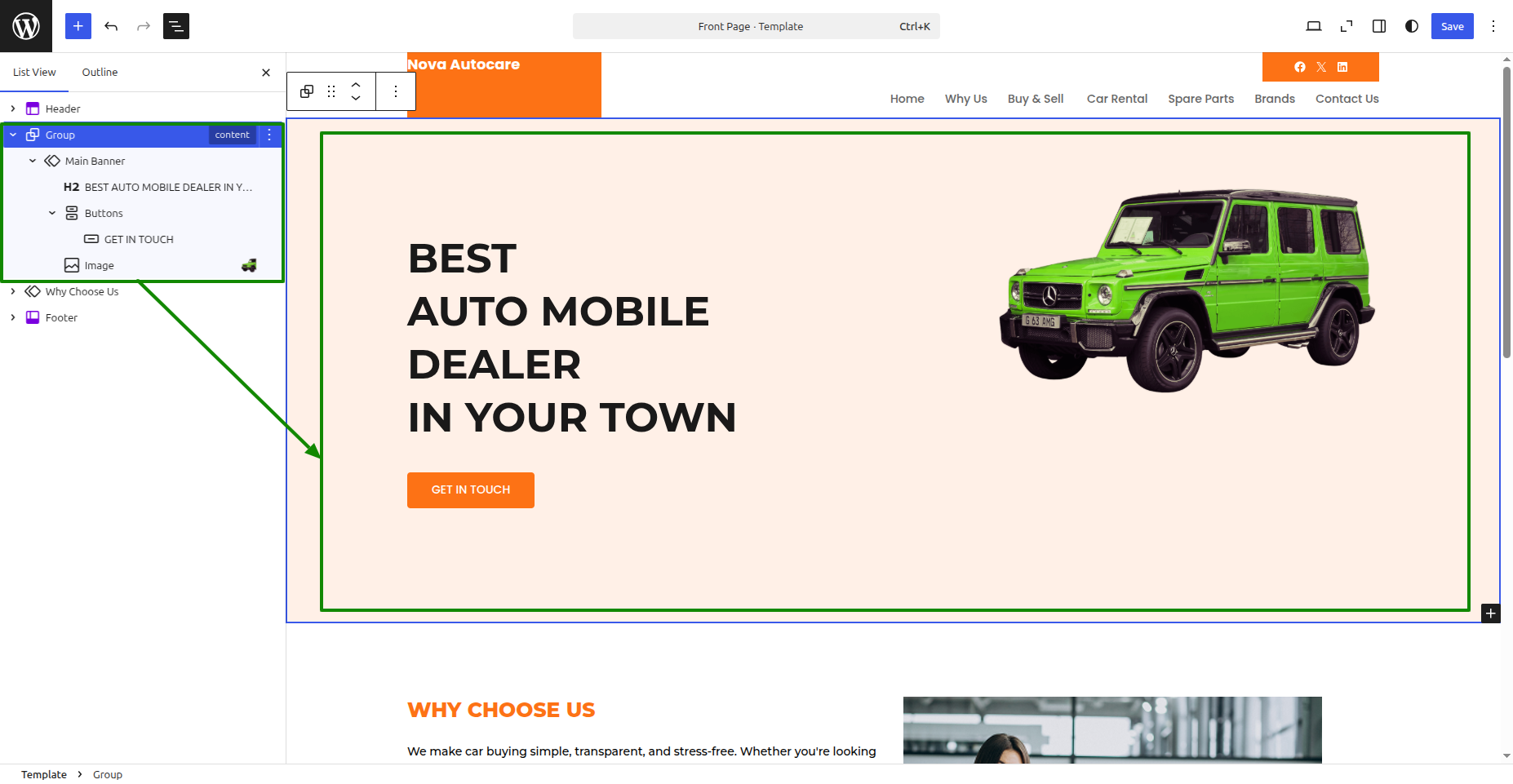
From a user interface perspective, it will appear as follows.

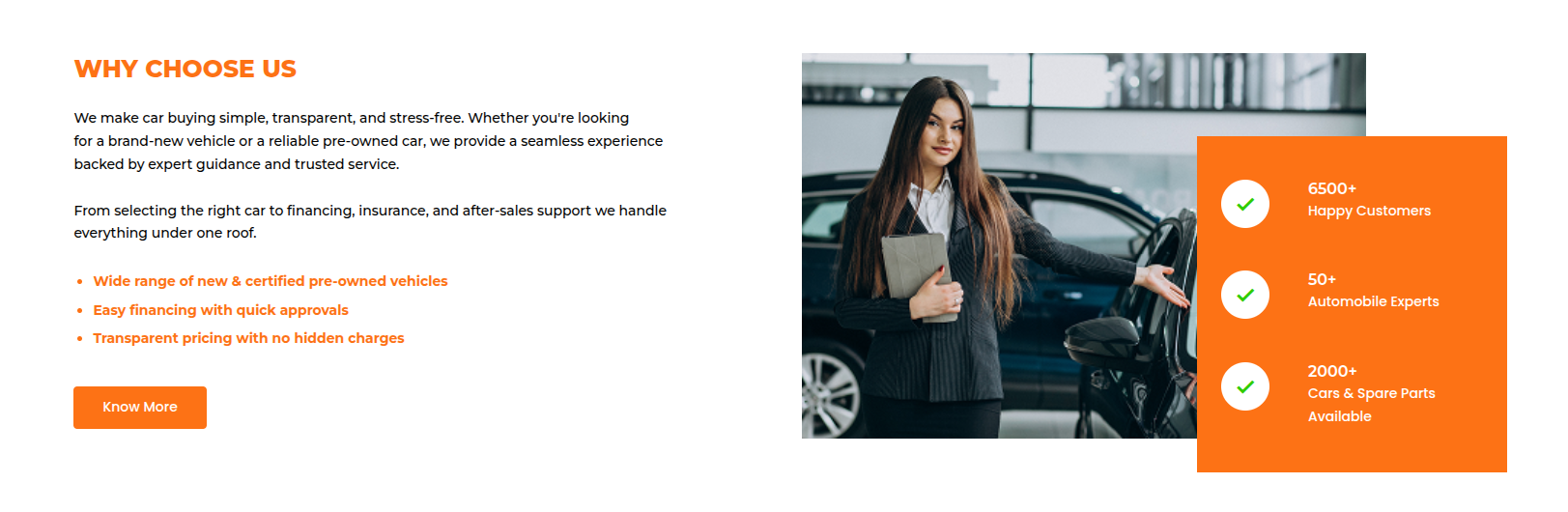
Create a Why Choose Us Part
To proceed with the Why Choose Us, please follow the steps outlined below.
Open the dashboard and tap Appearance >> Jump to Editor
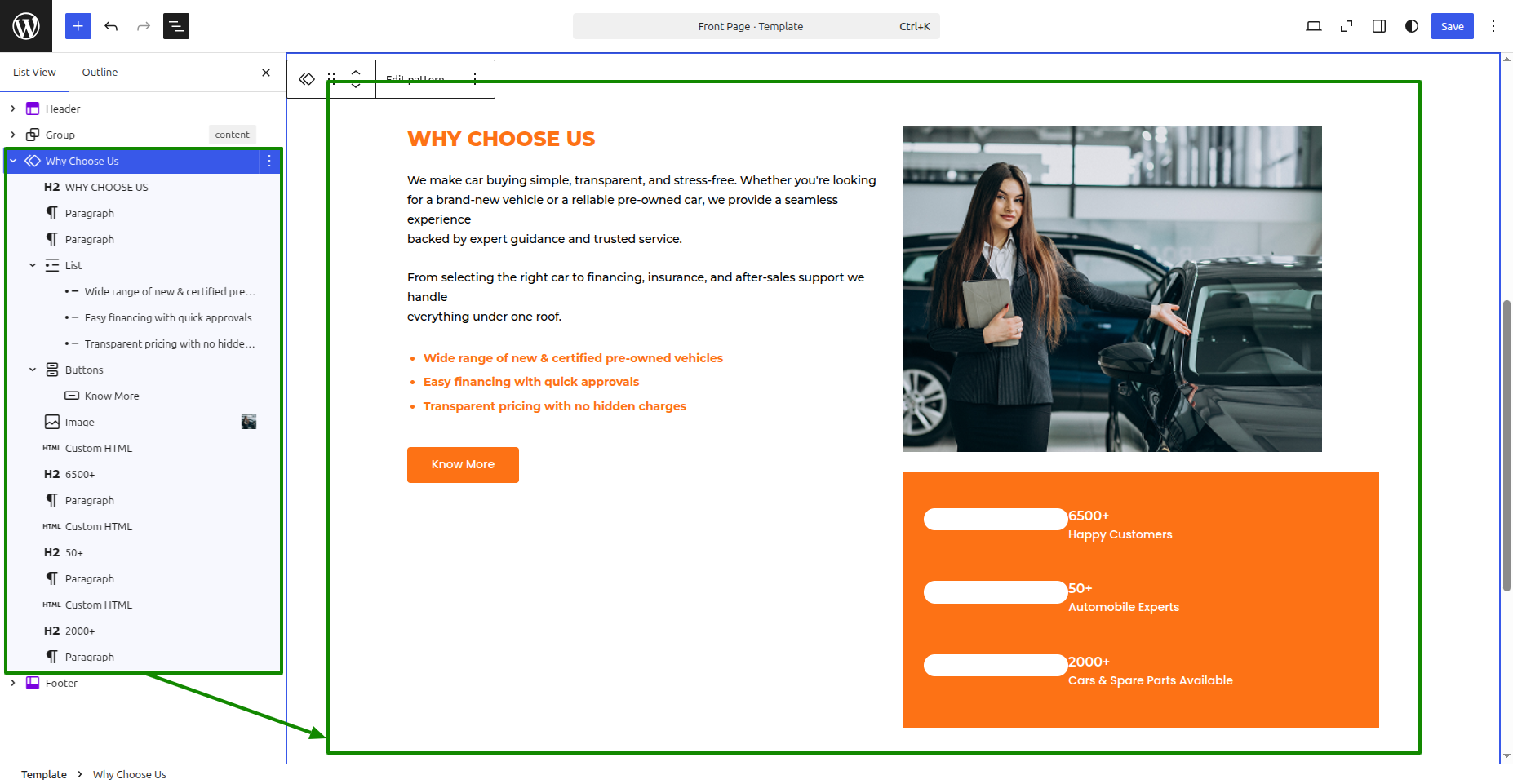
From a user interface perspective, it will appear as follows.
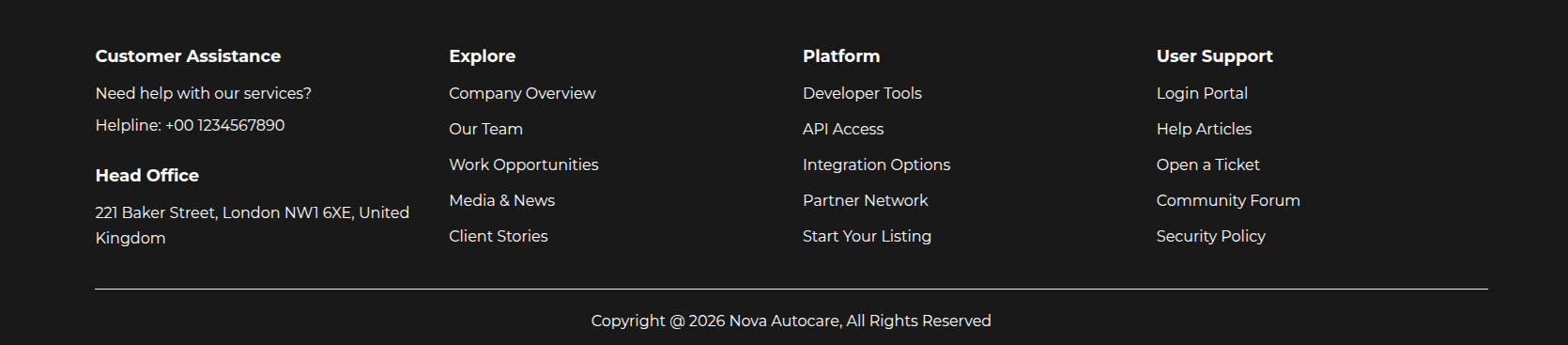
Create a Footer Part
To proceed with the Footer, please follow the steps outlined below.
Open the dashboard and opt for Appearance >> Jump to Editor
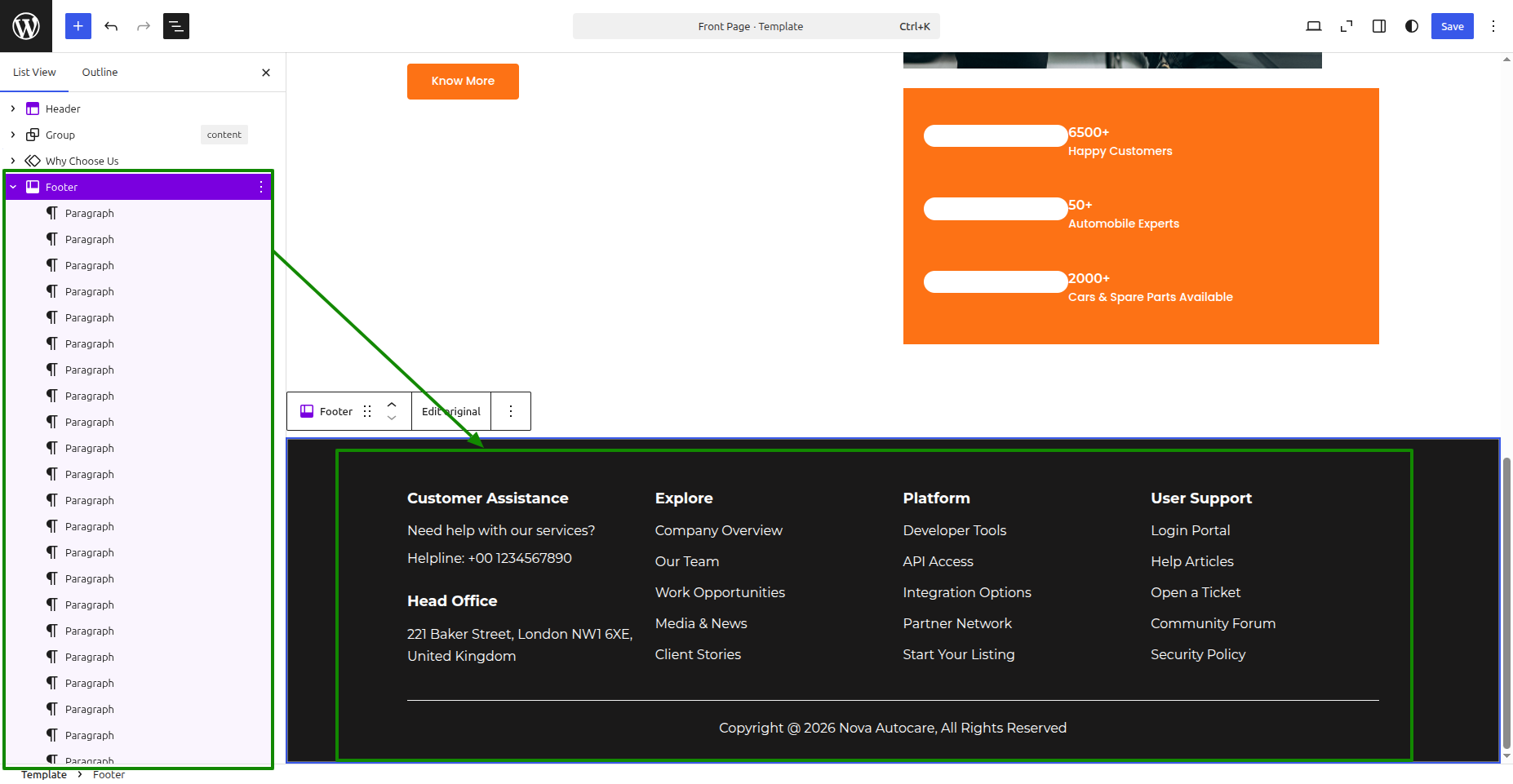
From a user interface perspective, it will appear as follows.